
Access Zipalti help resources
If you have a question or need assistance, you can contact Zipalti Support directly through your Zipalti Hub or the Zipalti Help Center.
This article explains how to open a ticket, chat with Support, follow up on existing cases, and view your historical support requests, including those where you’ve been CC’d.
Access help from the Zipalti Hub
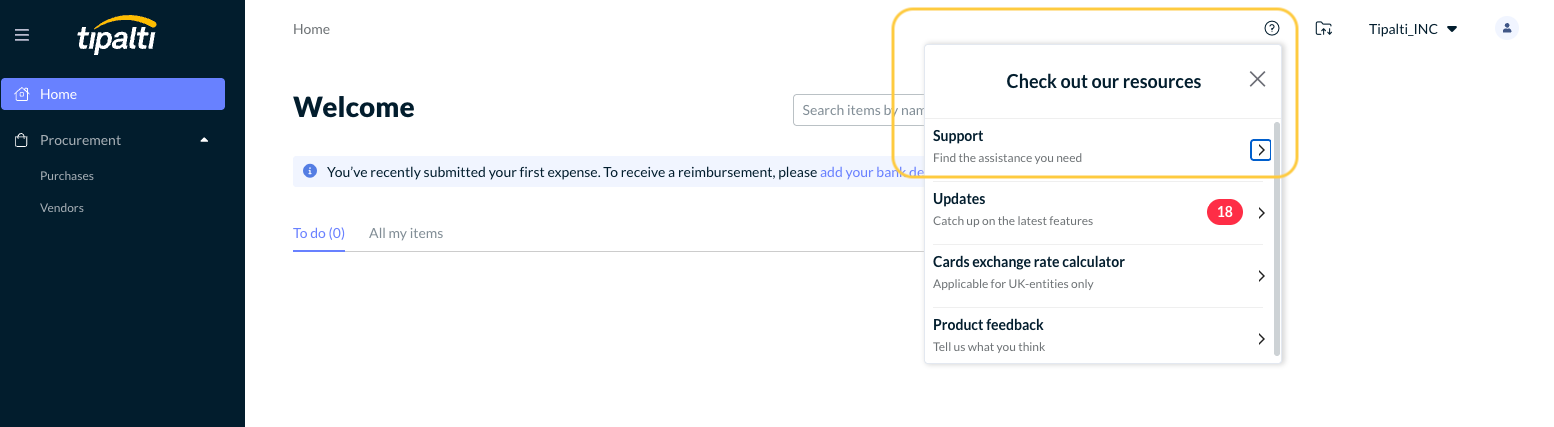
To reach Support from the Zipalti Hub:
- Click the Help (?) icon in the top-right corner.
- Select Support.
- Choose one of the available options:
- Submit a ticket – Create a new Support request for any question or issue.
- Live chat with our team – Start a real-time conversation with a Support representative (available during business hours for eligible plans).
-
Help Center – Browse articles, user guides, and FAQs.
Access the Help Center
When you click Help Center, a new tab opens to Zipalti’s online Help Center.
The Help Center uses the same login credentials as your Zipalti Hub.
If you are not signed in:
- You’ll see a “Sign in” link in the top-right corner.
- Clicking it will redirect you to the Zipalti Hub login page, just like when you log in to your account.
- Enter your Zipalti Hub credentials or sign in with Single Sign On (SSO), and you’ll automatically be redirected back to the Help Center, signed in.
If you are already signed in:
- You’ll see your email address or username in the top-right corner.
-
You can now browse articles or access your Support tickets.
You must be signed in to view your ticket history or follow up on existing requests.
Submit a new support ticket
To open a new request for assistance:
- From your Zipalti Hub, click Help (?) → Support → Submit a ticket.
The Submit a request page will open in the Help Center. - Fill out the ticket form:
- CC (optional): Add any colleagues who should receive updates on this ticket.
- Category: Select the issue type that best matches your request.
- Subject: Provide a brief, clear summary of the issue.
-
Description: Describe your question or problem in detail.
You can also record your screen using the Record my screen option. - Attachments: Upload any screenshots or supporting files.
- Click Submit to send your request.
After submission:
- You’ll receive a confirmation email containing your ticket ID.
- You can reply to this email or manage your ticket directly in the Help Center.
Track your existing tickets
Once you’re signed into the Help Center:
- Click your username in the top-right corner.
- Select My activities from the dropdown menu.
My Requests Page
The My requests page lists all your Support cases. Here, you can:
- View open, pending, and solved tickets.
- Check ticket IDs, creation dates, last activity, and status.
- Search by keyword or filter by status.
- Click a ticket subject to open and review the conversation.
Viewing requests you’re CC’d on
You can also see any tickets where you’ve been CC’d:
- On the My requests page, click the Requests I’m CC’d on tab.
- This tab displays all tickets where your email address was copied.
- Click a subject to open and view the ticket details.
View and update ticket details
To open or update a ticket:
- Click the ticket subject from your My requests list.
- The ticket detail view will show:
- The full conversation history with Support.
- Attachments shared between you and Zipalti.
- The assigned Support representative and ticket status.
- Scroll to the bottom to add a comment, attach files, or record a screen.
- Click Submit to send your update.
You can also reply directly to the Support email — your message automatically appears in the same Help Center thread.
Contact Zipalti Support
You can contact Support through either channel:
- Via email: Reply directly to your ticket email to continue the conversation.
- Via the Help Center: Open your ticket under My activities and add a new comment.
All correspondence stays synchronized between your email inbox and Help Center ticket view.
Troubleshooting access issues
If you cannot view your tickets:
- Ensure you’re logged in with the same email address used to create the request.
- Check your spam/junk folder for Support messages.
- If the issue persists, submit a new ticket and note that you can’t access your previous requests.
Additional Resources
- Zipalti Help Center – Browse articles, user guides, and FAQs.
-
Zipalti System Status – Check for any service incidents or maintenance.
Comments
0 comments
Please sign in to leave a comment.